
SolidWorks is a great program for mechanical CAD but getting it customized for your organization can be troublesome. As with most powerful software applications, there are a ton of different options for each file type and many ways to do the same the thing. One way to make things faster when generating parts, assemblies, and drawings is to take the time to build SolidWorks templates for your organization. Then all of your files will share common settings and you won’t have to set them each time.
Part and Assembly Templates
The online documentation for creating document templates is decent, but here’s a quick overview to speed up that process. Setting up SolidWorks templates for part and assembly files is by far the easiest process. Just open a new part or assembly and set all your options and settings the way you normally would. Most of these setting will be in Tools->Options->Document Properties.
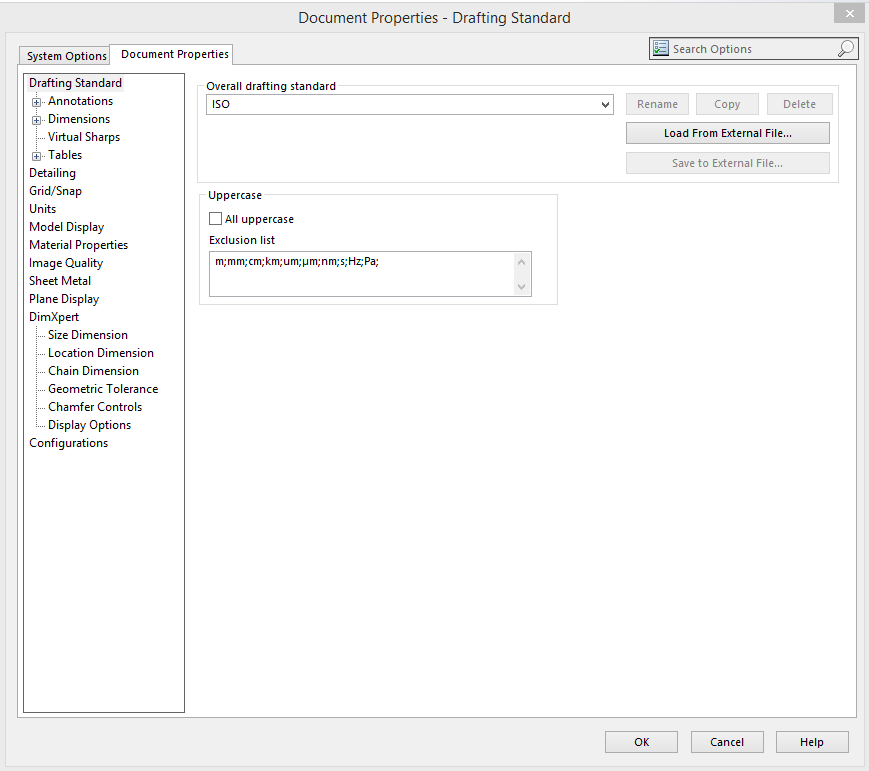
In this menu you can set the default units, annotation settings such as always displaying horizontal dimensions instead of aligning the to the leader, etc. To make the rest of your template creating process faster and easier, once you have set all of your setting, go to the “Drafting Standard” menu in the tree and select save to external file. This will let you save a .sldstd file that can easily be loaded into all your other template.
Another very useful place to make adjustments to your part and assembly templates is in the File->Properties dialog.
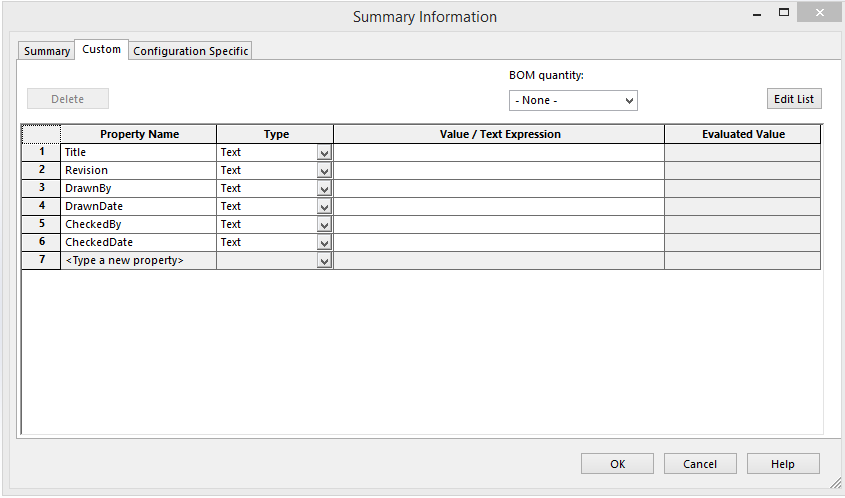
The properties dialog allows you to set custom properties for your part that can later be automatically imported into your drawings. Some of the properties that we use include a title for the part that can be separate from the file name of the part, fields for who created the part and who approved the part, dates for both of those items, and we include a version number as well.
Once you have set the options and custom properties for your part template, you will need to save it as a template. To do this just go to File -> Save As and in the file type drop down select Part Template or Assembly Template. SolidWorks will automatically change the directory to the standard template directly. You can save files here and they will automatically show up as options when you create a new file.
Sharing SolidWorks templates with other users on your network
If you want to share these templates across an organization you will need to copy these template files to a directory that everyone on your network has access to such a NAS or server directory. For mobile teams with out a central office, you can sync these files using a cloud storage solution as well. After you have that directory setup you will need to add that file location to the Tools->Options-> File Locations Dialog for Document Templates.
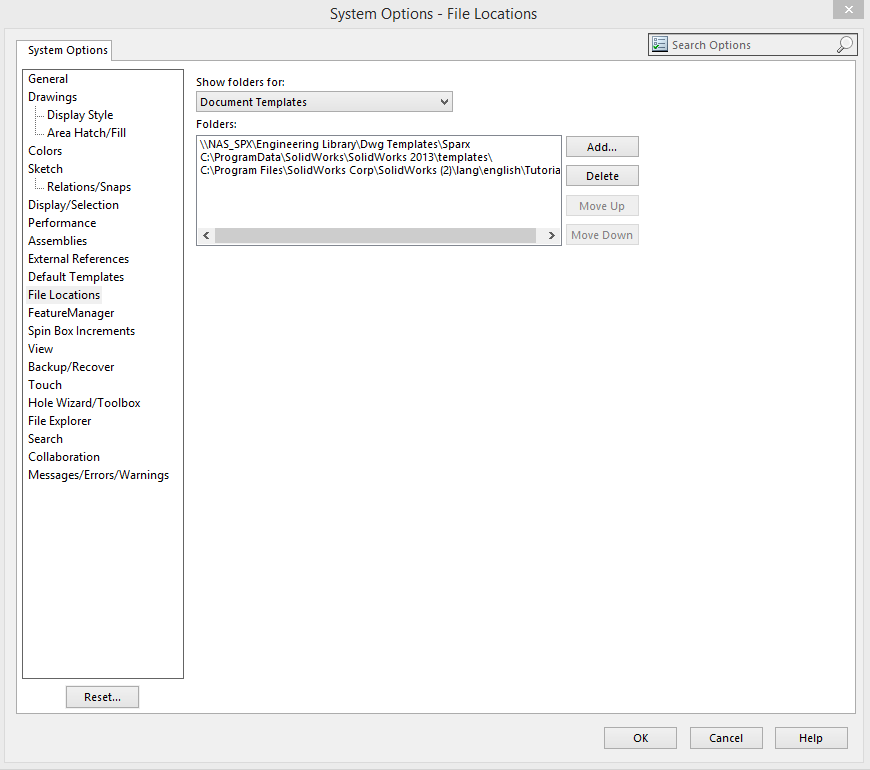
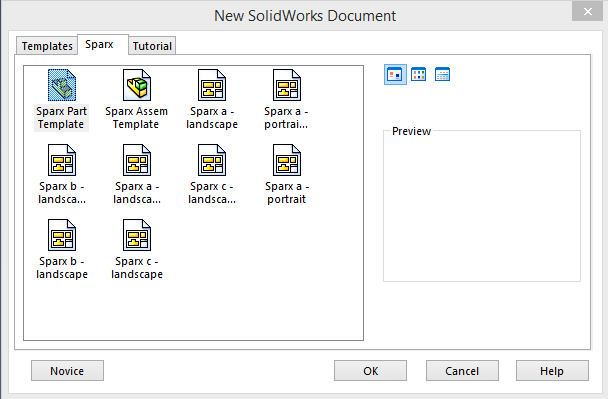
Now each time you create a new part their will be an extra tab in the new file dialog that will let you see the templates stored in the new file location.
That’s all for this post in the next post on this topic will talk specifically about drawing templates.